MSI MPG B550 GAMING PLUS Ez debug CPU white led (Help needed)

Disukyubi

New member
Joined
May 4, 2019
Messages
3
Hey guys, i decided to clean my pc after a good 3 years of use and i immediately regret it already.. I cleaned my fans, the gpu, psu, cpu cooler and reapplied thermal paste to my cpu. After i was done i tried booting up and it worked for a brief moment, i was checking the temperatures of my CPU until windows froze and i got the blue screen of death. It was around 41 celsius at idle when it froze and i dont know what caused it.

After that it stopped booting at all and i have been dealing with this constant white led light marking the CPU..

I have tried literally everything, took off my cpu cooler and cpu cleaned it again checked my cpu for any bent pins and it had none, i reapplied thermal paste again as well.

I reseated the ram, tried 1 stick of ram, reseated gpu, took out the CMOS battery for 5 min and jumped the JBAT1 pins with a screwdriver too, still with no effect.

What i dont understand is that it did boot up after the first cleanup but just for a few minutes, and now it doesn't at all. I see the MSI logo on my monitor for like a couple seconds and then it turns black immediately after.

In my opinion it cant be a bios version issue since i had my bios flashed at the build of my pc 3 years back, it worked just fine with the cpu afterwards and now i dont know what to do anymore..

I did flash the bios again because it couldn't hurt to do and I never updated it anymore in those 3 years of usage. The version is now at its latest 7C56v1M2. But still no luck.. might this be a motherboard issue? I've read a lot of problems with this specific mobo but i need your opinion in it first. I appreciate your help.

My specs:
CPU: AMD Ryzen 5 5600x
Motherboard: MSI MPG B550 Gaming Plus
RAM: G.Skill Trident Z RGB DDR4-3600 CL16 2x16GB
GPU: MSI GAMING X TRIO 3060 Ti 8GD6X
PSU: Corsair RM850x (2021)
 
Hey guys, i decided to clean my pc after a good 3 years of use and i immediately regret it already..

No, it's always smart to do this, especially if there were three years in between. If you're careful and know what you're doing, usually nothing happens other than having a clean PC afterwards, which is good.

I cleaned my fans, the gpu, psu, cpu cooler and reapplied thermal paste to my cpu.

Blowing out and/or vacuuming off the dust, yes, that's the main idea. Reapplying thermal paste, I wouldn't recommend this on a regular schedule (like after every X years), because yes, while thermal paste can dry out over time, the time until that happens can vary wildly, depending a lot on the type of paste and on the usage pattern of the PC. The best method is to observe the CPU temperatures, comparing to previously established baselines. If even the idle temperature has gone up considerably, then either the cooler has developed a problem (which we sometimes see with water coolers), or maybe the paste has dried up. If the temperatures are still good, it means there is no reason to touch the thermal paste, leave it as it is.

I did flash the bios again because it couldn't hurt to do and I never updated it anymore in those 3 years of usage. The version is now at its latest 7C56v1M2. But still no luck.. might this be a motherboard issue? I've read a lot of problems with this specific mobo but i need your opinion in it first. I appreciate your help.

This is definitely a good idea now. When you flashed it via the Flash BIOS Button, did it flash for 5-8 minutes and then reboot? That's when you know the flashing was successful. You can also try flashing other versions, like the 7C56v1L or 7C56v1K for example.

What's your CPU cooler?
 
This is definitely a good idea now. When you flashed it via the Flash BIOS Button, did it flash for 5-8 minutes and then reboot? That's when you know the flashing was successful. You can also try flashing other versions, like the 7C56v1L or 7C56v1K for example.

What's your CPU cooler?
Yes it did, when pressing the bios flash button it even started my pc up and restarted it once, after it was done flashing my pc kept on running. So i pressed and held the power button after a while to shut it off as i was sure it was done. But it changed nothing and i dont think its a bios issue anymore to be honest, but i can still try those versions.

My CPU cooler is an ARCTIC Freezer 34 eSports DUO and its sadly a hardass to assemble. The mounting kit it uses is really annoying since it has to be pushed down from the back of the motherboard so that the screws reach to the cooler bracket and i can assemble it. But i have had 0 issues with it these past years and it has been working fine since now
 
Yes, it might not be a BIOS issue, but trying a couple different versions is low-effort, so I would recommend that. Another thing you can try, loosen the mounting screws of the cooler a little, by half a turn each time, and try to boot. If it doesn't boot, you can keep loosening it a little each time and retry, but obviously not so much that it will no longer cool well.

The reasoning behind that method is, sometimes, I have observed similar issues with AM4 on the forum, for example also when people changed their cooler after some years. A possible explanation would be that the whole assembly around the socket has "settled in" to a certain state, depending on the way the cooler is mounted and the bend of the PCB in that area. And when this is disturbed after some years by removing all the pressure and then reapplying it, it might lead to a different state where some CPU pins don't have full contact with the socket anymore. This would be almost like a "hidden design flaw" of sorts.

Now, it could also be something completely different, because I'm just spitballing here, but as far as physical causes, it could be something like this. Whatever happens to the board/CPU connection when you take off the pressure and reapply it, it can sometimes lead to this end result. And this then also explains the idea about changing the mounting pressure of the cooler a bit, by loosening its screws. So I'd give that a try.
 
Thank you so much for your advice brother.. me overtightening the cpu cooler must have been the initial cause of this whole issue.. but the great thing is. I FIXED IT 🙏🏻

I literally just booted the pc without the ram.. the led switched to DRAM. Then i booted the pc again with ram inserted and voila.. the leds flashed and resetted all together and here i am staring at my windows log in screen. Ram really solved it. Thank you again for your time and effort i really appreciate it!
 
That's amazing to hear. And I will make sure to suggest this to others in the future if they're encountering the same issue.

About overtightening the cooler, if the mounting hardware is designed well, then it shouldn't be possible to do so. You just tighten it until it hits the end position, which is then applying the torque it was designed for. So the screws should stop at a defined point. In the cooler manual, they will also often say just to tighten it fully to know that it's mounted properly.

To me it still sounds like something physical with the stresses on the PCB, mainly from taking off the cooler and mounting it again, putting the PCB through a little back-and-forth, resulting in some kind of contact issue. And I'm glad you could solve it like you did.
 
I have the same problem with this board. Few days ago it just hanged up, and after power reset it wont POST, stuck in CPU LED lit up.
RAM checked, removed, reseated. Without the RAM LED moves to DRAM being lit.
Tightening or loosening the cooler makes no difference, CPU was even replaced, socket inspected, tried to apply pressure with a finger on it, reseated ten times, none of this works!
PSU was replaced - no change.
CMOS was reset - no change.
BIOS was flashed to the most recent via USB and flash button (if bios would be corrupted, this step would reveal that, but no, it flashed successfully) - no change.
 
Same problem with the same board model all of a sudden? Did you also change anything physical recently, like replacing the CPU cooler, or even just transporting the system somewhere, so that the cooler applies dynamic forces to the socket?

But I mean, you ruled out practically everything else, it is something with the board. But if there wasn't any physical change recently, then it could also be any kind of fault, some small component developing an issue and now the board is not happy anymore. Not necessarily to do with the contact between CPU and board.

You can do a visual inspection of the whole board with magnifying glasses, but often times it can be a small resistor or something that has croaked, with no visible sign of it. You can only find out if you measure the circuits and know what, how and where to measure, which is then best left to someone at a good repair shop, or depending on the value of the board, it can be better to get a new one, sadly.

If you tested with a suitable PSU (known good, not too old, and of decent quality, not some old PSU that was sitting on your shelf for years), if you tested with a new or a known good CPU, if you tested the RAM, if you unplugged all internal and external USB cables, plus the experiments with the cooler's mounting pressure, then there is not that much more to try. Have you tried with the board on a non-conductive surface like a wooden table, shorting the power switch pins with a screwdriver to turn it on?
 
Exact same board.
Not moved, not changed anything at all.
Used AMD 5300X CPU with the stock cooler, wasn’t overtightened at all. Thermal paste dried up tho, and when I removed the cooler, it pulled cpu along with it, but this is not the cause, because led was lit before this action.
No physical damage or debris found in or around the socket.
Yes all those tests were done, board was pulled out on the non conductive surface as well.

But have to say that mobo was acting up prior to this for months, suddenly hanging up, but I blamed an OS for that. And sometimes it didn’t even turn on at all. So something was wearing out and it wasn’t a PSU. PSU is decent, 1000W. I have a few of them brand new. That does not solve the issue.
 
Last edited:
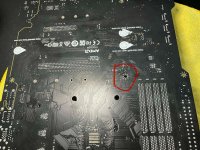
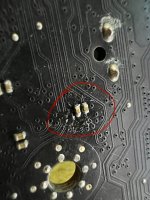
I just found a tiny brown capacitor on the back of the board a bit lifted (I can't see if that's a cracked solder or it's lifted along with the pads). I pushed it straight with a finger, took an soldering iron and melted solder on both of it's sides. Just a blind work. And it's location is near the M.2 slot.
Powered on - cpu led was still on, I switched the power off and then turned it on again - now it passed the CPU led, it briefly blinked and turned off.
But this is a progress, because earlier it was constantly lit up. Now it looks like being intermittent - need to toggle the power few time to get past it. What is going on?

UDP: removing the capacitor entirely didn't affect the behavior, still 50/50 chance post.
 

Attachments

  • IMG_3238.jpg
    IMG_3238.jpg
    635.6 KB · Views: 65
  • IMG_3237.jpg
    IMG_3237.jpg
    370.9 KB · Views: 63
Last edited:
Looks like problem is with RAM slot DIMMB1. If any RAM is installed in it - it gets stuck at CPU LED. If I leave it empty, but keep other 3 modules, it boots.
But also if I remove all modules but leave one in DIMMB1, it also boots.
But is does not boot if all 4 modules are installed.
 
Well, that's something. Not sure why this would randomly happen after some time, but hey, you could use two bigger modules in A2+B2, then it's fully usable again.
 
It's a bizarre. It looks like it refuses to work in dual channel mode. Placing ram in "sub-optimal" position makes it post, otherwise it gets stuck on CPU LED (and why CPU, why eazy debug is lying if it's ram related?).
RAM was checked with memtest - passed.
RAM is HYPERX HX436C17PB4K2/16. But it worked before with all 4 modules.
 
Well, that's something. Not sure why this would randomly happen after some time, but hey, you could use two bigger modules in A2+B2, then it's fully usable again.
With current ram prices, getting bigger 2x modules is more expensive than a new motherboard. My current modules are 4x8 Gb.
 
I didn't even see the post about the capacitor before, I don't know why, I think it must've scrolled to the newest post before and I missed that post. But if you look at the PCB traces (the visible data lines going from the CPU socket to the RAM slots), the SMD seems to be right in there, no? Not sure if it's a capacitor or resistor, but I would assume that you can't just leave it out, it will mess up the electrical properties of the circuit. So most likely, this is the cause of the problem.
 
I didn't even see the post about the capacitor before, I don't know why, I think it must've scrolled to the newest post before and I missed that post. But if you look at the PCB traces (the visible data lines going from the CPU socket to the RAM slots), the SMD seems to be right in there, no? Not sure if it's a capacitor or resistor, but I would assume that you can't just leave it out, it will mess up the electrical properties of the circuit. So most likely, this is the cause of the problem.
It was held for moderation because of attachments. That is a capacitor and it goes to M.2 slot. And it's not out, I soldered it back. Made no difference. Most likely it was lifted by the microfiber cloth I used to wipe the board, which is also happened after problem of cpu led was already there.

UDP: So the mentioned RAM slot is not defective, I found that out of 4 modules I have, which on the first look are identical, they have one number difference in their models. One pair is HX436C17PB4K2/16 and another pair is HX436C17PB3K2/16 (dmidecode shows as KHX3600C17D4/8G). They were bought separately. So when I use the second pair (b3), no matter which slots I put, it boots fine. Once I add the b4 pair - cpu led is intermittently on/off.
But I really don't understand why it worked in the past and now it does not. And that's not a bios update, which I have done only just now, it just suddenly stopped posting with these two pairs together.
 
Last edited:
Yes, they have a slightly different XMP. And of course, adding a second kit, even if it's 100% identical, doubles the load for the CPU's IMC (integrated memory controller), which is always more demanding. You said the PC was acting up before, so perhaps there was a RAM-related instability going on all this time, which somehow has gotten worse to the point that the IMC now goes on strike once you try to use all four modules.

As for replacing this with 2x 16 GB, yes, I know RAM is extremely expensive, but remember, you can also sell your two current RAM kits again afterwards, hopefully getting most of that back. And don't buy the RAM brand new, check eBay for a reputable sellers with a decent 2x 16 GB kit and test it thoroughly when you get it.
 
If both sets work fine on their own, have you tried keeping the B3 and B4 in the same channels?
A1 = B3
B1 = B4
A2 = B3
B2 = B4

This doesn't always work out :) but if the chips are identical specs (timings) and only minor latency issues which the memory training process is struggling to balance then maybe it helps.
 
Back
Top